
Related News




How to set up a Galaxy phone to be as close to an iPhone as possible
Posted by - support -
on - 6 hours ago -
Filed in - Technology -
-
21 Views - 0 Comments - 0 Likes - 0 Reviews
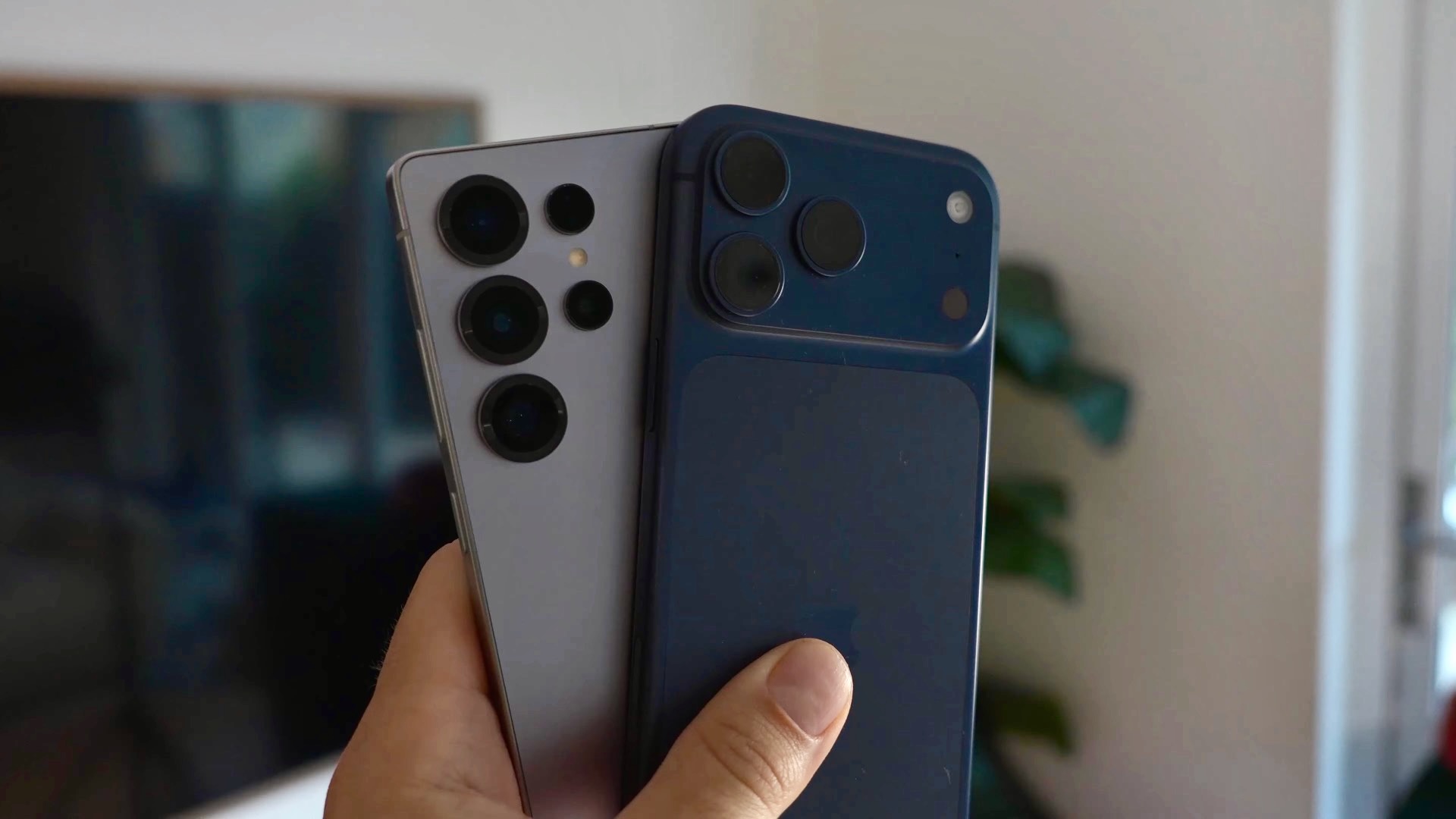
Samsung Galaxy phones are incredibly versatile and feature-rich. Besides having capable hardware, Galaxy phones offer a wide range of features, extensive customization options, and deep integration with other devices in Samsungâs ecosystem.
If youâve recently switched from an iPhone or are planning to move to a Galaxy device, some things may initially feel unfamiliar due to their different operating systems.
The good news is that Galaxy phones are flexible, and with the right apps and settings, you can make your Galaxy phone feel much more familiar while still enjoying all the benefits Samsung One UI has to offer.
In this guide, weâll show you how to set up your Galaxy phone to closely match the experience youâre used to on an iPhone. Whether itâs the home screen layout, navigation gestures, keyboard, notifications, widgets, or other everyday features, these tweaks can help make switching smoother, and you can feel comfortable on your new Galaxy device from day one.
Haven't transferred all your data from your iPhone? Our separate guide to transferring covers that process; follow it and then come back to this article for setting up your Galaxy phone like an iPhone.
How do you enable gesture navigation on a Galaxy phone?
Since operating your phone means navigating around its software for each and every task, matching your new Galaxy phone's navigation process to your old iPhone is of utmost importance. To do that, follow the steps below.
1. On your Galaxy phone's home screen, find the Settings icon and click on it.
2. Scroll down and tap Display.
3. Scroll down the screen and tap Navigation bar and choose the Swipe gestures option. You should now see a white-colored handle at the bottom of your phone's screen. It is always visible, no matter which app you are using.


With this setting done, operating your Galaxy phone will be almost similar to operating an iPhone.
- Opening the home screen: Swipe up from the bottom of the screen.
- Navigating back to the previous app or screen: Swipe inward from the left or right edges of your phone's screen.
- Viewing recent apps: Swipe up from the bottom of the screen and hold your finger for a second.
- Switching to a previously used app or to multitask between apps: Swipe up from the bottom of the screen and hold your finger for a second.
- Cycling through previously opened apps: Swipe right on the bottom edge of the screen
How do you arrange your Galaxy home screen?
You can keep all your apps on the home screen and its pages or use a separate Apps screen. The former suits people who prefer all their apps on the home screen like the iPhone. Keeping the Apps screen gives you a separate place to store apps if you donât need multiple home screen pages or want to use those pages for widgets.
- Touch and hold an empty area of the home screen, or pinch inward with two fingers.
- Tap Settings, then Home screen layout.
- Choose Home screen only to keep all apps on the home screen pages, then tap Apply.
Next, on your phone's home screen, tap and hold any app icon and drag it to the bottom of the screen to place it on your dock. To replicate your iPhone's experience, choose the apps you had on your iPhone's home screen dock.
Can you search your Galaxy phone like Spotlight on iPhone?
Finder is the Galaxy equivalent of Spotlight, iOS' system-wide search feature. It lets you quickly search for apps, files, and other content on the device, and there are multiple ways to access it.
- Touch and hold an empty area of the home screen and tap Settings.
- Enable Swipe up for Finder. You can then swipe up on the home screen to bring up Finder.
Note: If you would like to access Finder with either a swipe up and a swipe down on the home screen, disable the Swipe down for notification panel option.
The steps above assume you have put all your apps on the home screen. If you're using the Apps screen, you can add a persistent Finder bar to the home screen that remains available on all pages.
- Touch and hold an empty area of the home screen and tap Settings.
- Tap Show search on Home screen.
- Enable Finder. You can also enable the Search toggle if it's available for a persistent Google search bar next to the Finder widget.
How do you change your Galaxy wallpaper and colors?
You can use a familiar photo or image as your Galaxy phone's wallpaper to make it feel closer to your iPhone. You can apply an image to the home screen, lock screen, or both, and optionally use its colors across parts of the interface.
- On your Galaxy phone's home screen, pinch in using two fingers or long press on an empty area to reveal the home screen customization options.
- Tap Wallpaper and style on the bottom left corner of the screen and tap Change wallpapers.
- Now, you can tap any wallpaper visible in the Featured section or choose your own photo or wallpaper from the Gallery section on the screen. When you click on any wallpaper, you can preview how it would look on your home screen and the lock screen in the small preview pop-up menu.
- Select Lock screen or Home screen or both, depending on whether you want that wallpaper to be applied to the home screen or the lock screen or both. Then, tap Next.
- Then, tap the Done button at the top right corner of the screen.
To match the interface colors to those of your wallpaper, follow these steps:
- Return to Wallpaper and style and open Color palette.
- Enable the Color palette toggle. You can then choose from four color combinations inspired by your wallpaper or choose from some basic colors.
- After you select your preferred color palette, you can also choose to apply the same colors to the app icons on your phone by enabling the Apply palette to app icons toggle.
- Tap Apply.
You can also enable Dim wallpaper when Dark mode is on in Wallpaper and style to make the wallpaper dimmer in the night.
How do you customize the Galaxy lock screen?
The lock screen is the screen you see when your phone is locked and you press its power button (or double-tap the screen) to wake it up.
You can see a background (wallpaper) and the clock on this screen. At the top right corner of the screen, you can see the phone's battery charge level, mobile network information, and Wi-Fi connection. On the top left corner, your notifications are displayed.
You can customize the look of the lock screen by changing the wallpaper and the size and font style of the clock. You can also add mini widgets below the clock to display useful information like weather, sunrise and sunset times, and more.
Follow the steps below to edit the look of the lock screen.
- To edit your phone's lock screen wallpaper, pinch your phone's home screen with two fingers and then tap Wallpaper and style. Now, tap the image on the left side and tap the image-shaped icon on the top left corner of the screen.
- Now, choose any wallpaper visible on the screen. You can also tap Gallery to choose an image from your phone's image gallery. You can choose up to 15 images from your phone's photo gallery, and the phone will display a new image from those chosen images every time you wake the screen.
- You can adjust the image's placement by dragging it with your finger up or down and left or right. When you are satisfied with the wallpaper's placement, tap Done on the top right corner of the screen.
- You can also change the style, placement, and size of the clock on your phone's lock screen. To do that, pinch on your phone's home screen with two fingers and tap Wallpaper and style. Now, tap the image on the left side of the screen.
- Now, tap the clock on the screen. You can drag and resize that clock to change its size and location. Tap the clock widget to see all the font and color options. There are multiple font styles to choose from.
- You can also choose how thin or thick you want that font style to be by adjusting the font thickness slider on the screen. You can also choose a font color of your choice at the bottom of the screen. There is a water drop-shaped icon at the bottom of the screen to enable or disable transparency effect to the clock widget.
- Tap the Style tab to choose from the available clock styles. To best match an iPhone's style, choose the second clock style and enable the Show date above clock toggle.
- Now, tap Add widgets below the clock. You can choose up to four widgets from the list. For example, you can add battery, Samsung Health's Daily Activity, Weather's Current temp and weather, and Weather's Sunrise and sunset widgets.
- Now, tap the icons on the bottom left or bottom right corners of the screen to edit them. By default, they are set to open Camera and Torch (LED flash). Tap any one of those icons to choose from the available shortcuts. Ideal shortcuts would be Camera on the left and Torch on the right. You can tap and swipe these shortcut icons and swipe them to the left or right to activate them.
How do you add and customize home screen widgets?
A widget is a small card or piece of information on your phone's home screen, and you can tap them to view more detailed information. You can add useful information, such as date, current month's calendar, or current weather conditions on your phone's home screen so that you can view them with a quick glance.
To add widgets to your Galaxy phone's home screen, follow the steps listed below.

1. Pinch your phone's home screen with two fingers to reveal home screen customization options. Tap Widgets at the bottom of the screen to see all the widgets available.
2. Tap any widget and then tap the Add button to add it to your phone's home screen. The widget will then appear on the home screen. You can drag the edges visible around the widget to increase its size as per your preference.
3. Now, tap and hold that widget on the home screen. That will reveal three options: Create Stack, Remove, and Settings.
4. You can adjust how transparent the widget's background appears by tapping Settings and adjusting the Opacity slider. Choosing the leftmost option makes it the most transparent, while choosing the rightmost option makes it more opaque. You can also remove the background altogether by disabling the Background toggle.

A few notes about widgets:
- You can add as many widgets as possible on your phone's home screen. There are several widgets for Battery, Calendar, Camera, Clock, Contacts, Gallery, Gmail, Google, Samsung Health, Notes, Reminders, Weather, and more.
- You can tap and hold any widget, drag it to a desired place on your phone's home screen, and remove your finger from the screen to arrange the location of widgets according to your preferences.
- You can tap and hold any widget and tap Settings to customize their look (like colors, style, and more).
- If you want to remove any existing widget on your phone's home screen, tap and hold any widget on the home screen and then tap Remove to delete them.
Where is Control Center on a Galaxy phone?
You can think of Quick Panel as Samsung's version of Control Center available on iPhones. Samsung was the first smartphone brand to have quick settings toggles for quickly enabling or disabling things like Bluetooth, Wi-Fi, GPS, NFC, and more. Apple then copied it a few years later and gave it its own style.
To access the Quick Panel, swipe down from the top right edge of your Galaxy phone's screen. Tap any control (like Bluetooth, Mobile Data, or Wi-Fi) to turn that feature on or off.
Besides turning on or off Bluetooth, Wi-Fi, Mobile Data, Mobile Hotspot (Wi-Fi Hotspot) Flight Mode, Auto Rotate (Screen), Torch, and Power Saving mode, you can also control media playback and screen brightness from this section of your phone. You can also control compatible smart home devices from the Quick Panel.
To customize it, follow the steps listed below.

1. Open Quick Panel by swiping down from the top right corner of the screen. Then, tap the pencil-shaped icon at the top right corner of the screen.
2. Now, you can grab the handle of any control and drag it to resize it.


3. You can also tap Add a control at the bottom of the screen to add more quick controls to the Quick Panel.
4. Tap and hold any control on the Quick Panel and then drag it to change its position according to your preference.
How do you access notifications?
You can access notifications from all your apps on your Galaxy phone by swiping down from the top center or left part of the screen, similar to an iPhone. You can swipe any notification to the left or the right side of the screen to dismiss it.

You can tap the downward facing arrow on the right side of the notification to expand and reveal more information from that notification.
On the home screen, you can also open the notification panel by swiping down anywhere if you enable Swipe down for notification panel in home screen settings, but this will disable the ability to swipe down on the home screen to open Finder.
How can you make Samsung Keyboard feel more familiar?
1. Open the Settings app on your phone, scroll down and tap General management. Tap Samsung Keyboard settings, disable the Suggest stickers toggle and disable the Keyboard toolbar toggle.

2. Now, scroll down and tap Layout. Disable the Number keys toggle.


3. Now, navigate to the previous screen and tap Swipe, touch, and feedback. Now, navigate to Touch feedback and disable Vibration.
How do you set up messaging with iPhone users?
When both parties have RCS service enabled, conversations with iPhone users can include higher-quality photos and videos, read receipts, and typing indicators. You can make various optional changes to the inbox.
1. Open the Messages app on your phone and tap your profile photo on the right side of the screen. Scroll down and tap Message settings.
2. Now, scroll down and navigate to Gemini in Messages and disable the Show Gemini button toggle.

3. Navigate back, scroll down and tap Swipe actions.
4. Now, tap Swipe right and choose the Mark as read or unread option. Now, tap Swipe left and choose Bin.

5. Navigate back and tap RCS on the top of the screen. Make sure the Turn on RCS chats toggle and the Show typing indicators toggle are enabled. This way, you can send and receive high-quality images and videos, voice messages, emojis, and stickers with your friends who have either an iPhone or an Android phone. However, this ability depends on whether your carrier and your friend's carrier supports RCS.

6. Navigate back to General settings and navigate to Suggestions and actions. Now, disable the Suggested stickers toggle. Then, tap Suggestions, disable the Smart Replies option, and choose Tap to edit.

7. Now, close the Messages app by swiping up from the bottom of the screen.
Can you use FaceTime on a Galaxy phone?
You can join a FaceTime call when someone using an Apple device sends you an invitation link. Open it in a supported browser, such as Chrome, and request to join. This is browser access, not a full FaceTime app for Android, and only allows you to accept calls, not initiate them.
If you want to be able to both initiate and receive calls, you have to switch to an alternative app. Google Meet and WhatsApp are the best possible alternatives.
We suggest using Meet, which comes pre-installed on all Android phones, as it is deeply integrated into the system and is supported in the default Phone app.
1. Open the Phone app and tap Contacts on the bottom of the screen.
2. Now, scroll down and find the contact you want to have a video call with. When you tap their name in the contacts list, the Google Meet icon appears if you've saved their Gmail ID. Tapping on that icon initiates a video call.

How do you arrange contacts and set a profile card?
The Contacts app is where all your contacts are stored. There isn't much to do here except for setting the sorting and naming structure.
1. Open the Contacts app, tap the three dots icon at the top, and then tap Settings.
2. Now, tap Sort contacts by and select First name.
3. Now, tap Name format and select First, last.

To set a Profile Card for yourself, follow the steps listed below.
- Open the Contacts app, tap your name that appears on the screen, and then tap the pencil-shaped Edit icon on the bottom of the screen.
- Now tap Profile card and then tap the Image icon on the bottom of the screen. Then, tap the Allow all option if a permission pop-up window appears.
- Now, tap Gallery and choose any image you like. You first need to make sure you have your own photo or any photo that you want to select as your profile card image. Once you've chosen the image of your liking, you can adjust its placement by dragging it to the left or right with your finger. Then, tap Done on the top of the screen.
- Then, tap Save on the bottom of the screen.
Sharing the profile card is optional. You can choose to share it with everyone or just your shared contacts, or disable it altogether.
To do that, tap Profile card and picture in the Contacts app's Settings section and enable the Profile card and picture sharing toggle. Then, tap Share with and select the Everyone or Contacts only option.
Camera
These camera changes are preferences rather than requirements for switching from iPhone, but making these changes will give you a closer experience to the iOS camera app compared to the default settings.
1. Open the Camera app and tap the four dots icon in the lower half part of the screen. Now, tap the Settings icon (cog shaped), scroll down and tap Swipe preview up/down to and choose the Off option.

2. Now, navigate back and tap Shooting methods and disable the Voice commands and Show palm toggles.

3. Navigate back and enable the Location tags toggle. Then, go back to the home screen of the phone.

Where are your downloads and private files on a Galaxy phone?
The My Files app on your Galaxy phone is similar to the Files app on iPhones. This is where you can find all the files stored on your phone. This app also displays how much storage space is consumed and the amount of storage that is available to be used.
When you open the app, the Recent files section is where all your recent files, documents, photos, and videos are displayed in the order of when they were last opened or created.
The Downloads section is where you can find any file that you download on the phone. You can tap any of the five categories at the top of the screen to find all the files of that particular category.
You can search for any file by tapping on the pill-shaped Search bar at the bottom of the screen. You can tap and hold any file on the screen to display its options.
- Move: You can move a file to a different folder or location by tapping the Move icon.
- Copy: You can tap Copy to copy it to the clipboard and paste it in another location or folder.
- Delete: Tap the Delete icon to delete that file. That file then is moved to the phone's Recycle Bin/Trash section and stays there for 30 days. If you don't restore that file from the recycle bin for 30 days, it is deleted forever from your phone.
- More: Tap the three-dot icon to reveal more options, like Copy to clipboard, Details, Rename, Compress, Add to favorites, and more. Moreover, you can tap Move to Secure Folder to move any file to Secure Folder.

What is Secure Folder?
Secure Folder is a separate, protected space for apps and files, with its own lock settings. It is optional and doesnât need to be configured just to make the phoneâs controls feel familiar.
You can open Secure Folder only after authenticating yourself with a PIN or fingerprint, so your files and apps are safe from others. It is secured using Samsung's defense-grade Knox system.
You can set up a Secure Folder on your Galaxy phone by following the steps below.
- Open the Settings app and tap Security and privacy.
- Now, scroll down and tap More security settings. Tap Secure Folder, click on More, and then tap the Continue button.
- On the next screen, your phone asks your permission to use Calendar, Contacts and accounts, photos and videos, music and audio, and notifications. Scroll down and tap the Continue button.
- Now, your phone will create a secure folder for you. This process takes a few minutes.
- Now, tap PIN to create a separate PIN. This can be different from your phone's lock screen PIN that you use to unlock the phone. A six-digit number is recommended, but a 4-digit number works as well. Enter your preferred number and then tap the Continue button.
- Now, enter the same PIN again and tap the OK button.
- On the next screen, tap Allow if you want the Secure Folder to be unlocked using your Samsung Account in case you forget Secure Folder's PIN. If you don't want your Samsung Account to be used to unlock Samsung Folder in case you forget the PIN, tap Don't allow.
- Now, tap the Next button on the bottom of the screen.
- If you want apps in your Secure Folder to be able to work in the background, choose the Allow background activity while locked option. (If you don't want apps in the Secure Folder to work when the Secure Folder is locked, tap the Close all apps while locked option.)
- Now, tap the Done button. Your Secure Folder is now ready to be used. You can enter the Secure Folder PIN and tap Done to open it.
What happens inside Secure Folder does not affect the rest of the phone, so you can also use it as a way to have two instances of the same app with completely separate data that doesn't conflict.
How can you use and customize calendars, notes, and reminders?
Calendar
1. Open the Calendar app from your phone's home screen and swipe up once on the middle of the screen using your finger. This will make the calendar layout similar to your iPhone.
2. Now, tap the three horizontal lines icon on the top left corner of the screen and then tap the cog-shaped Settings icon. Now, disable Show completed reminders and Hide events from previous days toggles.


You can switch between months by swiping left and right on the screen, which is different from swiping up and down on iPhones. If you want to view the entire year in the calendar, tap the three horizontal lines icon on the top left corner of the screen and then tap Year.
Notes
The Notes app on Galaxy phones is a lot more capable compared to the Apple Notes app on iPhones. It supports drawing, advanced text formatting, adding images, various pen styles, and shapes. You can also change the note style, background color of the note, and solve maths calculations and equations.
To set up the Samsung Notes app to closely match the Apple Notes app, you don't need to do much. Open the Notes app on your Galaxy phone, tap the three-dot menu button on the top right corner of the screen and then tap View. Now, select Grid (small) option.

Reminders
Samsung Reminder is similar to the Reminders app available on iPhones and other Apple devices. This is where you can add your reminders and to-do lists. It works the same way as Apple's Reminders app.
1. Open the Reminders app and tap Add reminder at the bottom of the screen. You can add a sub-task, due date and time, location, and image to it. You can also tap the list-shaped icon to add the reminder to a particular category.


2. Now, tap the three-Dot button on the top right corner of the screen, tap Sort by, and tap Title and Ascending.

There is not much else that you need to do in this app. You can add early alerts, repeat rules, place, and alert type (Notification, Full Screen Short Sound, or Full Screen Long Sound) to each reminder or to-do item.
How can you secure your Galaxy phone with biometrics?
iPhones generally use Face ID as the default biometric-based security solution, and you can use it to unlock your phone and authenticate your purchases. Galaxy phones, on the other hand, use fingerprints for biometric security and purchases.
You can register your fingerprints on your new Galaxy phone by following the steps listed below. This will make it easier for you to unlock your phone, authorize payments, and unlock certain critical apps.
- Open the Settings app on your Galaxy phone, scroll down, and tap Lock screen and AOD.
- Now, tap Screen lock and biometrics, enter your PIN or passcode, and tap Continue.
- Tap Fingerprints and then tap Add fingerprint. On the next screen, tap Continue and then tap Register.
- On the next screen, follow the on-screen instruction to register your fingerprint.
- Once one finger's fingerprints are registered, tap the Add another button if you want to add one more fingerprint and repeat the process again.


You can add up to four fingerprints. It would be best if you registered your left hand's and right hand's index and thumb fingers. However, it is up to you which fingers you want to register.
Once you register your fingerprints for biometric security, you can unlock your phone and certain apps (like password managers and banking apps) by placing one of your registered fingers on a designated area on the lower half of screen.
Can you unlock your Galaxy phone with your face?
Face recognition is an unlocking option on supported Galaxy phones. However, it is not identical to Face ID and is less secure than fingerprint authentication. It also isn't accepted by every app and cannot be used to authenticate payments.
Consider face recognition on your Galaxy phone as a convenient way to unlock it instead of a replacement for Face ID or fingerprint authentication.
Can you share files and media with others using AirDrop?
Quick Share on Android allows you to share files wirelessly with users who have an Android phone or an iPhone. You can think of it as AirDrop for your Galaxy phones.
- Open the Settings app on your Galaxy phone and tap Connected devices.
- Now tap Quick Share and turn on the Share with Apple devices toggle.

You can now open any image, video, document, or file to share that file with iPhone or Android users.
Once you've open a file or photo that you want to share with others, follow the steps below:
1. First, make sure the person you are sharing the file with selects the Everyone for 10 minutes option on their Apple device's AirDrop settings.
2. Open any file and tap the Share button.

3. Then, tap Quick Share and then choose an iPhone, iPad, or Mac to which you want to share the file with.

4. The other person with an Apple device will get a request to accept the file you are sharing. Ask them to accept the request, and the file transfer will begin.
Why does Samsung Wallet open when you swipe up on the screen?
Samsung Wallet uses a swipe-up shortcut in places such as the home screen or lock screen for quick access. That can feel unexpected while youâre getting used to gesture navigation. You can turn off the shortcut only where you donât want it, while keeping it elsewhere, or disable it entirely.
1. Open the Wallet app on your phone and tap the three-dot icon on the top right corner of the screen.
2. Tap Settings and tap Quick access.

3. Now, tap Swipe up gesture and disable Lock screen, Home screen, and Screen off toggles.

This will make sure that swiping up from the bottom of the screen doesn't interfere with UI navigation gestures, such as closing an app and going to the phone's home screen.
Can you remove preinstalled apps you donât use?
There are a few unnecessary apps installed on Galaxy phones, such as Global Goals and Smart Tutor. You can uninstall them quite easily, or in some cases, disable them.
To uninstall any app on your Galaxy phone:
- Tap and hold the app icon of any app you want to uninstall.
- Now, tap Uninstall. Then, tap Uninstall again on the small pop-up menu that appears on the bottom of the screen.
- Some preinstalled apps may have a Disable option instead of Uninstall; choose that option to stop the app from running or showing up on your home screen or app drawer.

Once you perform all the steps mentioned above, your new Galaxy phone would be as close to an iPhone in terms of UI navigation and apps as possible.


 Loading ...


